Changelog

Follow new updates and improvements to Crewhu.

New integration: send Crewhu CSAT surveys from Thread

Crewhu now integrates with Thread. If your team uses Thread as its service desk, you can send Crewhu CSAT surveys straight from a Thread Flow and collect feedback inside the conversation your customer already had with support.

What's new

  • A new "Send a Crewhu survey" action in Thread Flows. When a ticket reaches the status you choose, such as Complete, the Flow sends your Crewhu survey to the customer.

  • Works on every Thread channel. Customers receive the survey in the web portal, the chat widget, Microsoft Teams, and Slack.

  • Simple setup. There is no separate integration to turn on. Copy your CSAT survey snippet from Crewhu and paste it into the Flow action.

  • Always up to date. Thread reads your survey images from Crewhu, so any change you make in Crewhu appears in Thread automatically.

  • Your choice of survey. Resolved and Reply surveys both work with Thread.

How to get started

  1. In Crewhu, go to Settings > Surveys > CSAT and copy the Snippet for the survey you want to use.

  2. In Thread, go to Flows, create a new Flow, and set the trigger and filters.

  3. Add the Send a Crewhu survey action, paste the snippet, and save.

Step-by-step instructions with screenshots are in the Help Center: Send Crewhu CSAT Surveys from Thread Flows
New: Crewhu ESAT Shows How Every Team Really Feels

Live now on Crewhu Pulse

Your team now has a voice inside Crewhu.

Until today, Crewhu told you how your customers felt about your team. Now, you can ask your team how they feel, anonymously, and see exactly where to act.

What's

new

Launch in minutes, not weeks. Start from the Badass Employee Experience template, with 25 questions across seven categories, and adjust it to fit your company. Pick your audience from the employees already in Crewhu, customize the invitation and thank-you pages, and you're live.

Honest answers, because anonymity is real. You never see who answered, who didn't, or who got a reminder. Only how many are still pending.

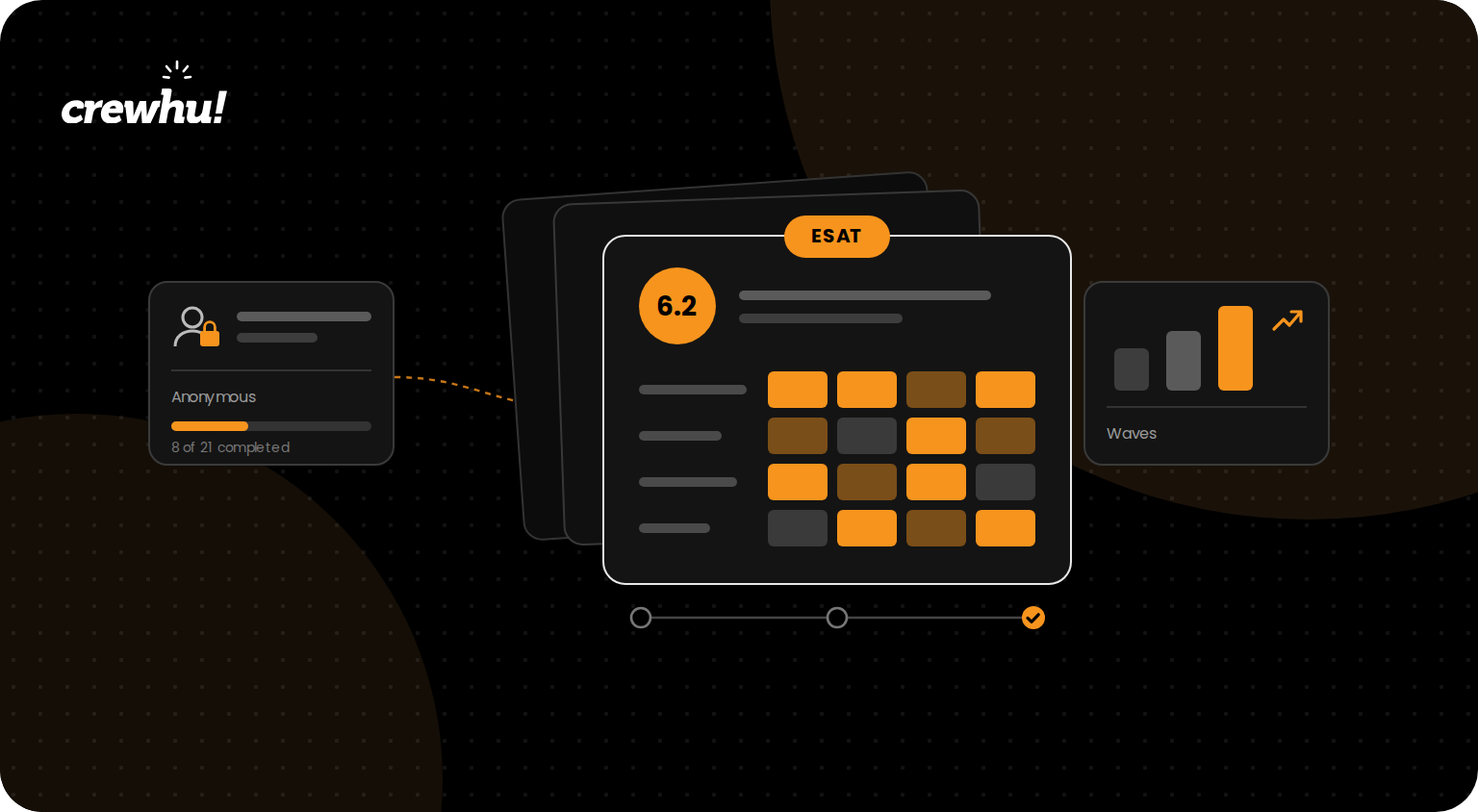
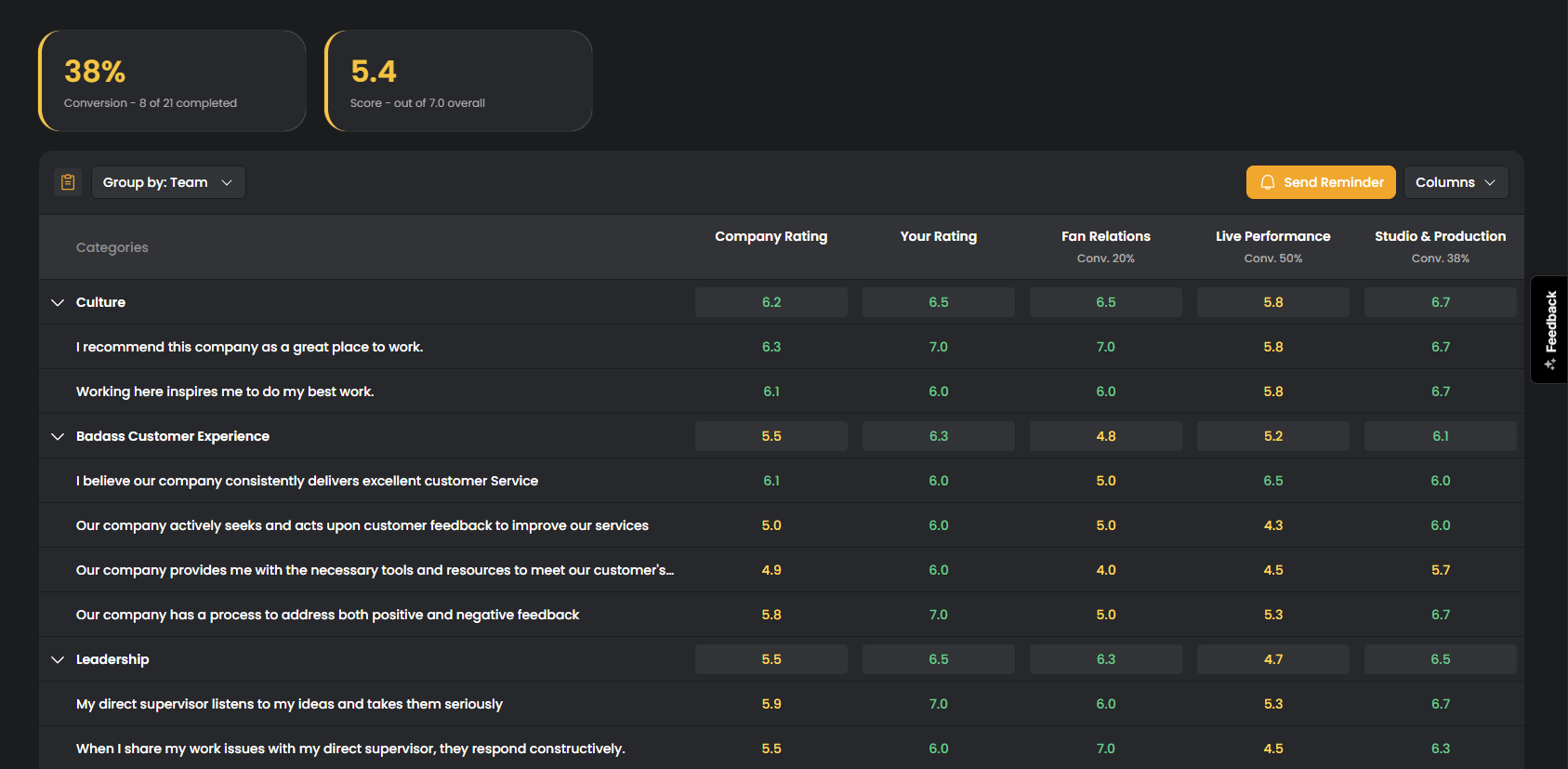
See exactly where to focus. Results show up as a heatmap, by category and by question:

  • Group by Team, Location, or Group to find the area that needs attention

  • Compare Your Rating with the Company Rating to see where your view and your team's view differ

  • Send a reminder anytime to everyone who hasn't finished, without revealing who they are

Track progress round over round. With Waves, compare the same categories across survey rounds and see whether what you changed actually moved the score.

Why it matters

No more guessing which team is struggling or why people are leaving. Crewhu ESAT shows you where the problem is, and the tools to act on it are already in the same place: badges, Crewhu Bucks, and contests.

Available on all Crewhu plans. Employee segments and Waves are available on Recognize and Grow.

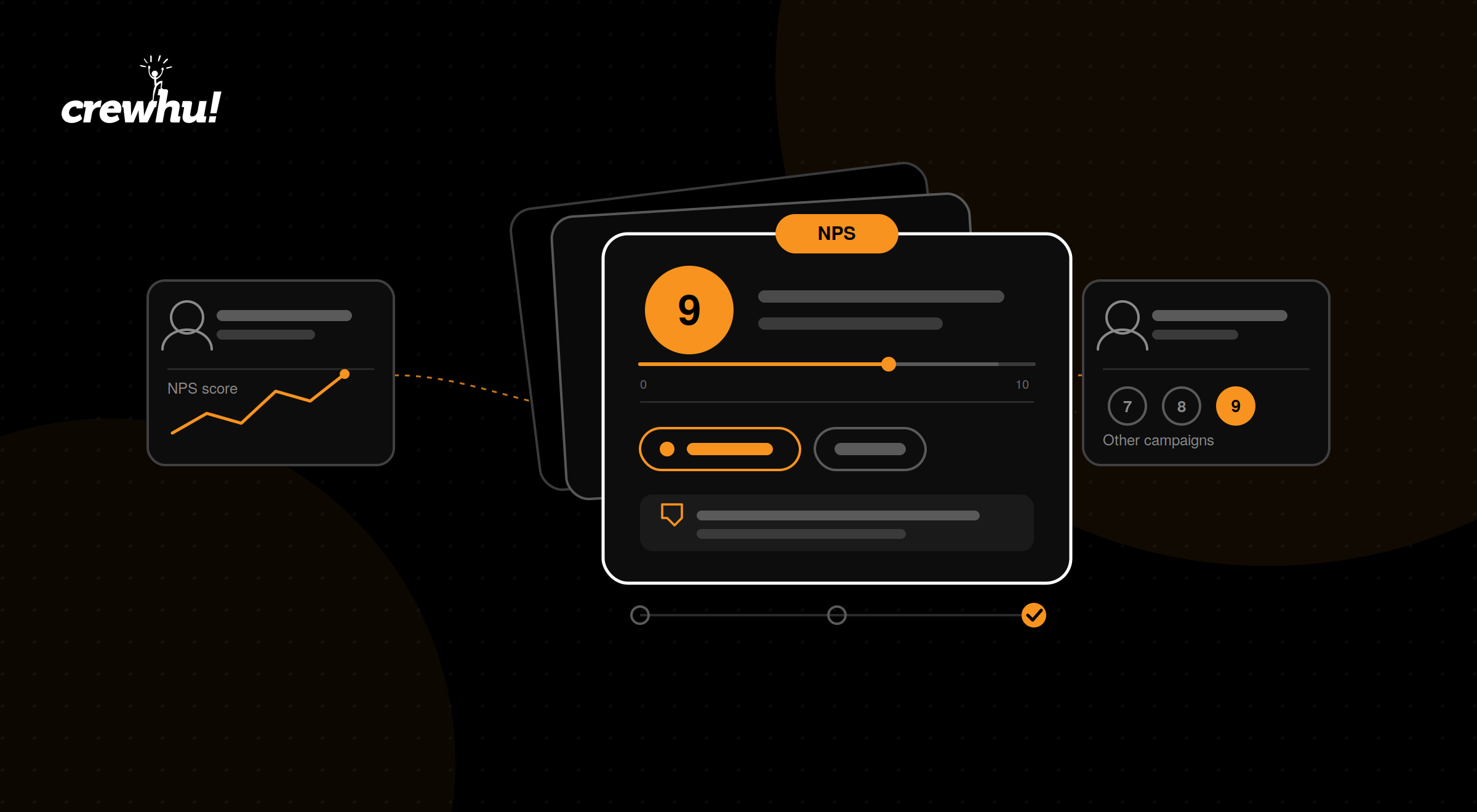
New: Full Context for Every NPS Response

Live now on Crewhu Pulse

Your NPS responses just got a lot more useful.

Until today, clicking a response in your campaign list didn't do much. Now, it opens the full story behind that score.

What's new

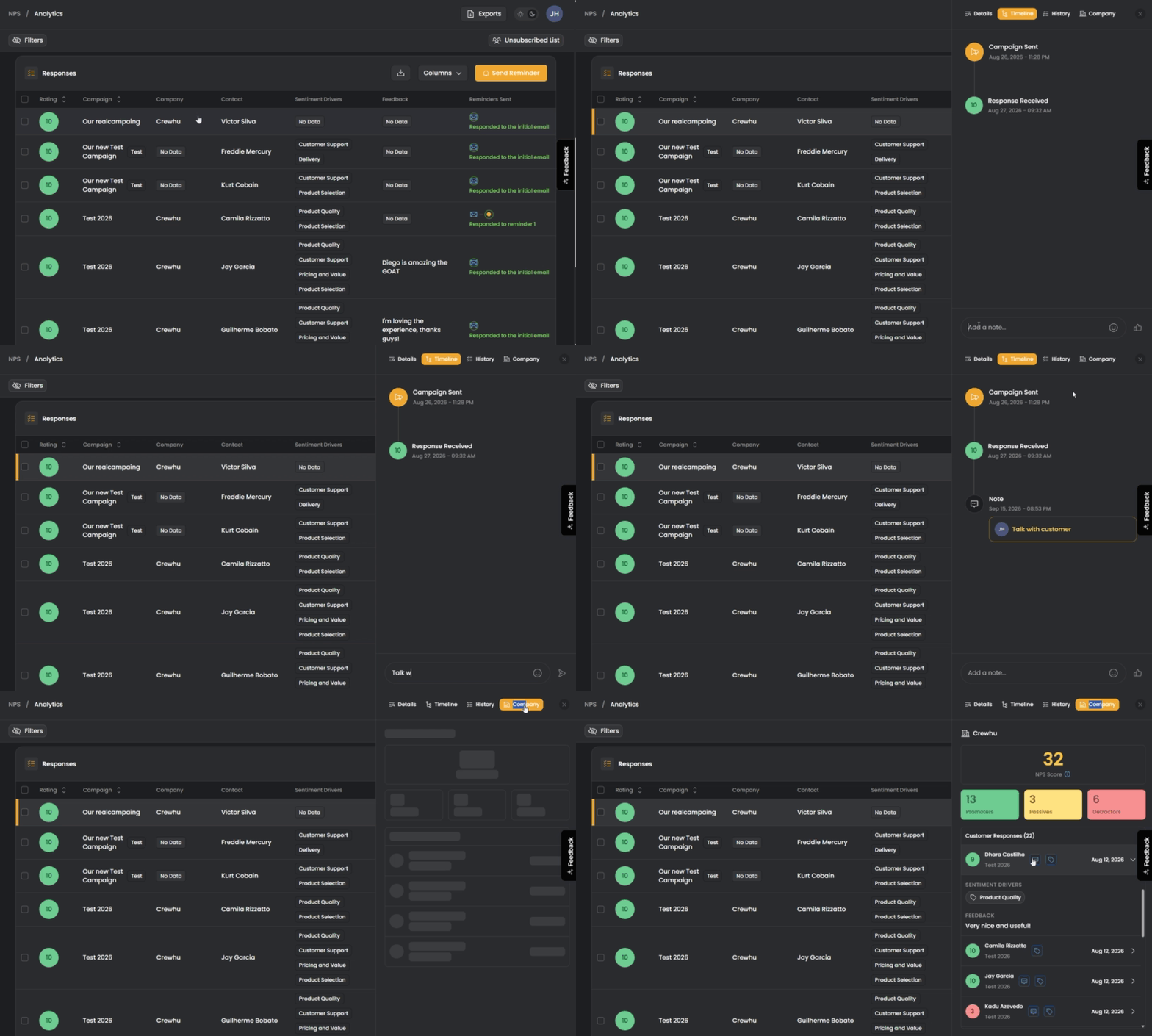
See the whole picture, not just one score. Click any response and instantly see:

  • The full response detail - rating, comment, and Sentiment Drivers

  • Every other response that company has ever given, across every NPS campaign, plus their all-time NPS score

  • Every other response that specific contact has given, so you know if this is a pattern or a one-off

Keep a running log, right on the response. Add comments to track what you've done - "reached out, waiting to hear back" - and build a timeline your whole team can see.

Fix a mis-clicked rating, the right way. If a customer tells you they meant to give a different score, you can now correct it. We just require a quick note explaining why, so the original rating, the new one, and the reason are always on record.

Why it matters

No more digging through spreadsheets and old emails to figure out if an account is trending up or down. Everything you need to decide how to follow up is right there, the moment you open a response.

Earlier updates